Mac OS X keyboard shortcuts, and other tips/tricks
(Install and start KeyCastr if demo'ing keyboard shortcuts; shows keystrokes onscreen.)
First things...
- ⌘-SPC (spacebar), "sys", RETURN, and then search in System Settings for "customize modifier"
- Map Caps Lock to ESC. This will come in handy when you learn vim (you're going to learn Vim, of course ... ? 😃) Also, ESC cancels modal dialogs of various kinds, such as ⌘-SPC (Spotlight search).
In System Settings, search "mission", choose "Hot Corner Shortcuts"
Mission Control - bird's-eye view of windows, spaces, and apps
I set my hot corners to something like this...
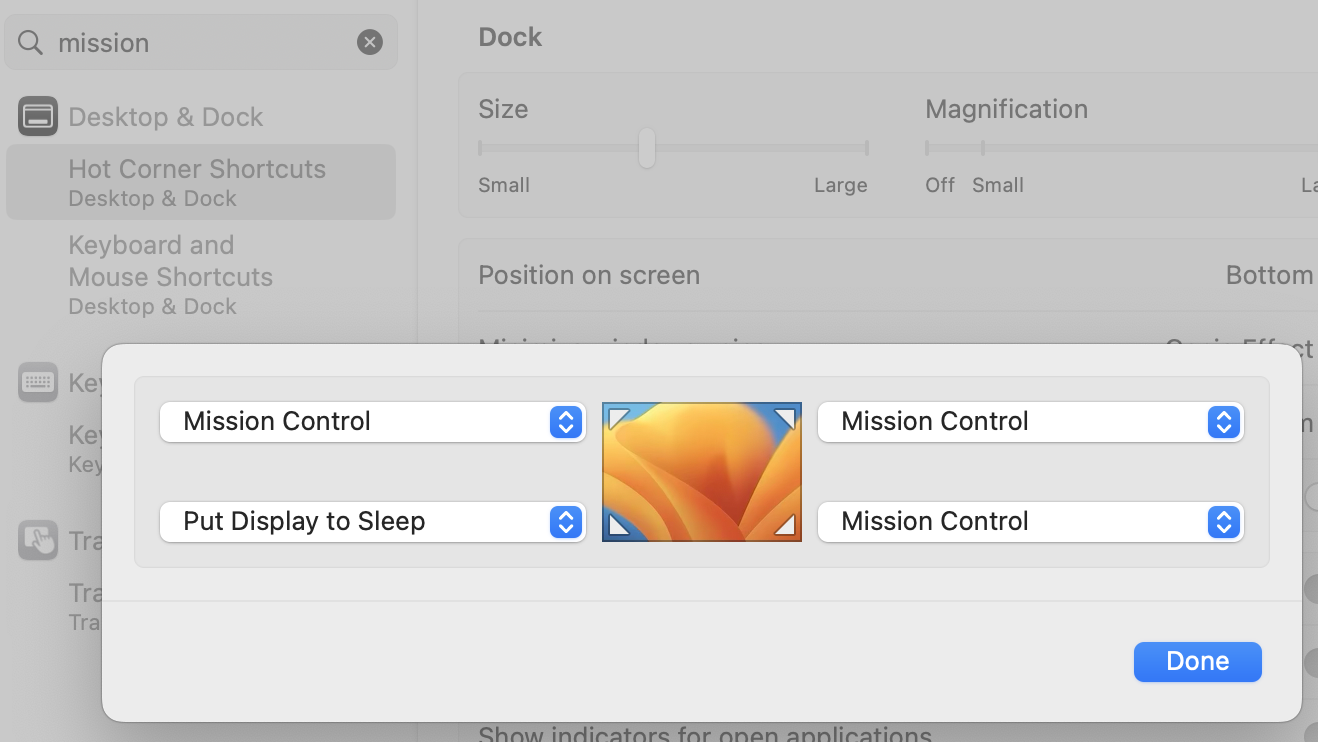
When you touch that screen corner with your mouse, the selected action happens.
Other "Mission Control" settings:
- OFF - "When switching to an app, switch to a space w/open windows"
- OFF - "Displays have separate Spaces"
General Keyboard Shortcuts
-
⌘-SPC - Spotlight. Search for anything on your Mac: apps, text, filenames, etc.
- What to search for?
- "ter" - Terminal.app - Sometimes just "t" is enough; Spotlight remembers frequency.
- "sys" - System Settings.app
- What to search for?
-
⌘-TAB - Cycle between open apps. (⌘-SHFT-TAB goes the other way).
-
⌘-n - New window in an app (e.g., new bash window in Terminal, new browser window in Chrome, new Finder window in Finder).
-
⌘-w - Close active window in an app (e.g. a tab in your browser).
-
⌘-` - Cycle between windows in an app.
-
⌘-, - Open an app's settings (aka preferences).
-
⌘-CTRL-SPC - Open the characters menu (emojis, symbols, etc.)
Capturing Screenshots
Selecting and capturing a portion of the screen
- ⌘-SHFT-4 - Drag the crosshair to select. Selected area is saved in a file on your Desktop.
- ⌘-SHFT-Ctrl-4 - Drag the crosshair to select. Selected area is saved to your copy buffer (paste with ⌘-v).
Selecting and capturing a window
- ⌘-SHFT-4, then SPC - When you tap SPC, the crosshair changes to a camera. The active window is saved in a file on your Desktop.
- ⌘-SHFT-Ctrl-4, then SPC - When you tap SPC, the crosshair changes to a camera. The active window is saved to your copy buffer.
Editing
- ⌘-c - Copy selected
- ⌘-v - Paste selected
- ⌘-x - Delete selected
- ⌘-z - Undo
App-specific shortcuts
Finder shortcuts
- ⌘-SHFT-n - New folder at top of hierarchy in current Finder view.
- ⌘-BKSPC - Delete highlighted item (e.g. a file). BE CAREFUL!
- <right-arrow> - Expand directory view.
- ⌘-<down-arrow> - Zoom Finder view to highlighted sub-directory.
- ⌘-<up-arrow> - Unzoom Finder view up on directory level.
Browser shortcuts
- ⌘-+ - Increase font size.
- ⌘-MINUS - Decrease font size.
- ⌘-0 - Restore default font size.
- Ctrl-TAB - Cycle between tabs in active window.
- You can drag a tab out into its own window (and drag it back in too).
Mission Control - bird's-eye view of windows, spaces, and apps
- When in Mission Control, add a workspace with "+" (top right corner)
- Ctrl-<up-arrow>
- Ctrl-<right-arrow>, Ctrl-<left-arrow> - switch workspaces
- Ctrl-<down-arrow> - app focus
While in Mission Control, you can drag windows around to various desktops.
To delete a desktop, hover over its thumbnail until a white "X" appears, and click the "X". (No windows in that desktop will be deleted; they will simply move to the previous desktop).
Hit ESC to exit Mission Control.
Gestures
In System Settings, search "gestures", choose Trackpad gestures.
Trackpad with drag lock:
- "use trackpad for dragging"
- "with Drag Lock"
Terminal.app (zsh)
- Tab to autocomplete file or directory names.
- ⌘-k - Clear screen, including scrollback history.
- ⌘-<double-tap> on a URL in the terminal window - Opens that URl in default browser.
- ⌘-TAB - Open a new shell in the same window.
- Ctrl-TAB - Cycle between tabs (similar to behavior with browser tabs).
- You can drag a tab out into its own window (also like browser tab, except that you can't drag it back in).
Explore
- Trackpad has "light" click and "firm" click (aka "force click").
- Function keys can be set to default to F1-12, or to the "other" mode (FN-<fn-key> accesses whatever the "other" mode is. ⌘-SPC, "function keys".